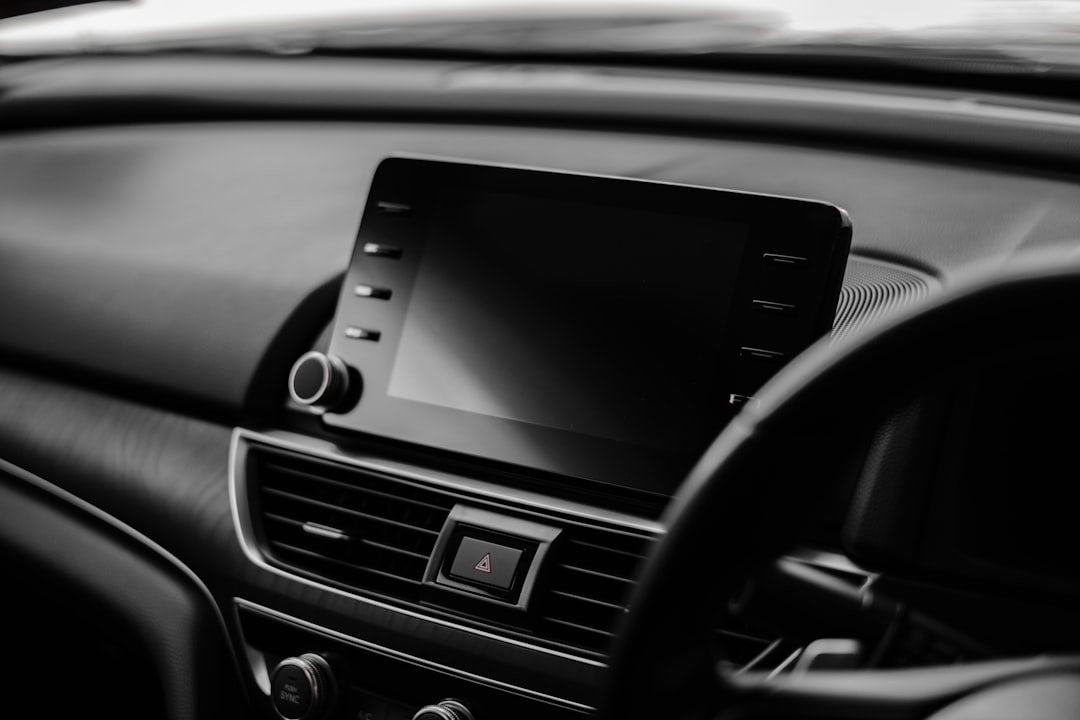
A common misconception is that you need a cable or a manufacturer app before Bluetooth will work. You do not. How to connect phone to car Bluetooth usually comes down to putting the car in pairing mode, selecting it on the phone, and approving a code. If you are learning how to connect phone to car Bluetooth on a used vehicle, old saved phones can complicate the process. Start while parked.
How to connect phone to car Bluetooth step by step
Turn the vehicle on, or switch the ignition to accessory mode so the infotainment system has power. Park first. Open the car screen’s Phone, Bluetooth, Settings, or Connections menu, then choose an option such as Add device, Pair new phone, or Search for devices. The wording changes by brand and model year, so the owner’s manual is useful when the menu is hard to find.
- Enable Bluetooth on your phone. On an iPhone, open Settings, then Bluetooth. On Android, open Settings and search for Bluetooth if the menu location is not obvious. Leave that screen open.
- Put the car into pairing mode. The car should display a name, often the vehicle brand or infotainment system name. Some older systems stay visible for only a minute or two. Move quickly.
- Select the car on the phone. Tap the displayed car name under available devices. If several similarly named cars appear, check the screen in the vehicle before choosing one.
- Confirm the pairing code. Depending on the phone and vehicle, you may be asked to confirm a matching six-digit number or enter a four-digit PIN shown on the car screen, with four-digit PINs more common on older systems.
- Allow the permissions you want. Contact sharing lets the car display names for calls, while message access may allow text readouts. You can decline either permission. Phone calls will usually still work.
Once paired, make a quick call or play a song to confirm the connection is doing what you expect. Keep it simple. If calls work but music does not, open the car’s media source menu and select Bluetooth Audio rather than AM, FM, USB, or another input. On the phone, check that audio output is set to the car instead of the handset or earbuds.
Set up automatic reconnection
Most cars reconnect when the phone is nearby, Bluetooth is enabled, and the vehicle starts. That is normal. Give the system 30 seconds before assuming it failed, especially on older head units that boot slowly after the ignition comes on. It is common to start the car, see no connection right away, and have the phone connect by the time you have fastened your seat belt. If your phone regularly connects to wireless earbuds first, put those earbuds back in their case before starting the car.
Some Toyota and Hyundai systems allow more than one paired phone but only one active phone for calls or media. Check the device list. If a partner’s or previous owner’s phone is set as the priority device, select your phone as the active one or remove unused profiles. For example, in a shared car, removing an old phone after a trade-in can stop the system from repeatedly trying to reconnect to it. The number of saved phones and active connections varies by model, so check the owner’s manual or ask a dealer what your specific system supports.
Troubleshooting pairing issues
The most useful fix for stubborn troubleshooting pairing issues is to remove the connection on both sides and begin again. Do both. Delete the car from your phone’s saved Bluetooth devices, then delete the phone from the car’s device list. Restart the phone, switch the vehicle off and back on if practical, and repeat the pairing steps with the phone close to the dashboard.
If the car name never appears on the phone, the vehicle may not actually be in discoverable mode even though its Bluetooth menu is open. Look for Pair, Add, or Search. Some systems require you to press and hold a phone button on the steering wheel or head unit before they can be found. Check the manual for that specific procedure rather than guessing through every menu.
If the phone finds the car but pairing fails, make sure no other phone is trying to connect at the same time. Turn Bluetooth off on nearby devices for a minute. Also confirm the car has not reached its saved-device limit, which happens often in family vehicles and former fleet cars. Delete inactive entries, then try again.
A reboot can clear a minor software hang. Restart the phone fully, not just the Bluetooth switch, then restart the infotainment system if its manual provides a safe method. Installing pending phone software updates can help compatibility, but do not update while driving or when you need the phone for navigation. A factory reset of the car system is a last resort because it may erase radio presets, navigation settings, and paired devices.
Weak audio, dropouts, or delayed call sound can have a different cause than failed pairing. Test with the phone out of a bag or metal console compartment. Disconnect aftermarket Bluetooth adapters, wireless CarPlay or Android Auto dongles, and extra chargers one at a time if they were added around the time the issue started. If the same problem remains with another phone, the car’s infotainment system may need a software check by a dealer or reputable audio shop.
Know the difference between Bluetooth and phone projection
Bluetooth handles calling and music audio on most vehicles, but it does not necessarily put maps and phone apps on the dashboard screen. That is separate. Apple CarPlay and Android Auto may require a USB cable, a compatible wireless connection, or a vehicle plan depending on the model. A successful Bluetooth pairing does not prove that phone projection is available.
If you only want hands-free calls, Bluetooth is usually enough. For music, make sure Bluetooth Audio is selected as the source. For navigation prompts, open the map app and choose the car as the audio output, then raise both the phone volume and the car volume if directions are too quiet.
FAQ
Why does my car say my phone is paired but nothing plays?
The connection may be limited to calls, or the stereo may be on the wrong source. Check the audio source. Select Bluetooth Audio on the car, then open the phone’s output controls and choose the vehicle. Also make sure media volume is turned up on the phone, since call volume and music volume are often separate.
Can I pair two phones to one car?
Toyota, Hyundai, and other current vehicle systems can often save several phones, but the number varies by model. Only one phone may control music or calls at a time. Check the Bluetooth device menu to choose the active device, and remove old entries if the system is full.
Why does Bluetooth disconnect every time I start the car?
First, check whether the phone is connecting to another saved device nearby. Then forget and re-pair the car. If it still drops after clean pairing, check for phone and infotainment software updates, and have a dealer or shop inspect the vehicle system if the problem affects multiple phones.
Is it safe to pair a phone while driving?
No. Pull over first. Pairing asks you to read menus, approve codes, and adjust permissions, which takes attention away from the road. Set it up before a trip, then use voice controls where your vehicle and phone support them.
Related posts
This article is for general informational purposes only. Bluetooth menus, features, compatibility, and pairing steps can vary by phone, vehicle, model year, and software version. Consult your vehicle owner’s manual and phone manufacturer’s support resources for instructions specific to your devices.
Disclosure: This post may contain affiliate links. If you click through and make a purchase, we may earn a commission at no extra cost to you. We only recommend products we’ve researched or genuinely believe in.