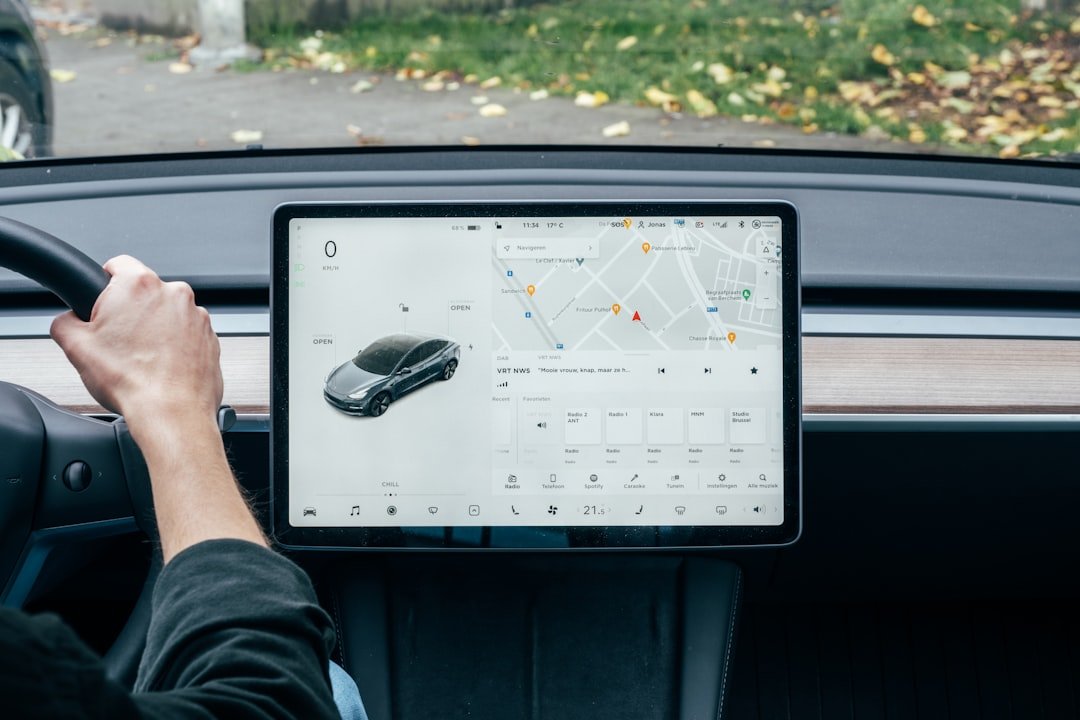
A common misconception is that a car infotainment system is only a big touchscreen with music apps. It is much broader. Asked plainly, what is a car infotainment system? It is the in-car hardware and software that handles entertainment, communication, navigation, certain vehicle settings, and information through a screen, physical controls, speakers, microphones, and sometimes a head-up display.
Some systems are simple. Others control nearly everything, including climate settings, drive modes, cameras, charging schedules, and seat functions. That difference matters because a screen that looks impressive in a showroom can become annoying when you need to adjust the temperature on a dark, wet road without taking your eyes away from traffic.
For a new buyer, the useful question is not screen size alone. Ask how easily the system does the jobs you use every day. Phone connection, maps, audio controls, camera views, and response speed usually matter more than fancy animations or a long list of apps you will never open.
What is a car infotainment system and what does it do?
The infotainment system is the digital command center in most modern vehicles. It usually includes a central display, software interface, audio source controls, Bluetooth phone pairing, USB ports, and a microphone for calls or voice commands. Basic units may use a small screen and buttons. Higher trims often add larger displays, built-in navigation, wireless phone integration, premium audio, and connected services.
It does not run the engine. The vehicle has separate computers for braking, airbag deployment, powertrain control, and other safety-critical work. Still, infotainment can communicate with those systems to show fuel use, tire-pressure alerts, service reminders, battery status in an EV, parking-camera images, and vehicle settings.
That integration has grown quickly. A few years ago, the radio and climate panel were often separate units with knobs and buttons. Many newer cars place those controls in the screen, which can clean up the dashboard but also creates more menu steps for simple tasks.
The main features explained for new buyers
Most buyers will encounter the same core functions, though the names and layouts vary by brand. Learn the basics first. A system is easier to judge when you separate the daily-use features from the extras bundled into an expensive trim package.
Audio and media controls
Every infotainment system controls radio stations and audio playback. Most also support Bluetooth streaming, USB audio, podcasts, audiobooks, and subscription music apps through a connected phone. Better systems may include satellite radio capability, a built-in app store, rear-seat entertainment, or branded speakers.
Sound quality is personal. A premium speaker package can make a long commute nicer, but speaker badges alone do not tell you how it sounds. Sit in the driver’s seat, play familiar music, and listen at normal volume. Check whether the bass is muddy, the vocals are clear, and the controls are easy to reach.
Apple CarPlay and Android Auto
Apple CarPlay and Android Auto put selected phone apps on the vehicle screen. They commonly handle maps, calls, messages, podcasts, and music with a layout designed for driving. For many people, this is the most valuable infotainment feature because it lets them use their preferred navigation and audio apps without learning the carmaker’s software.
Connection type matters. Wired systems need a USB cable each time, although they tend to be stable and will charge your phone. Wireless systems are convenient. They can also drain a phone battery faster, and some cars have occasional connection dropouts depending on the phone model, software version, cable quality, or wireless interference.
Test your own phone if possible. Pair it at the dealer, start navigation, play audio, and make a call. A system can be excellent with one phone and fussy with another, particularly when the vehicle and phone software have not been updated recently.
Navigation and live traffic
Built-in navigation uses maps stored in the vehicle or downloaded through its data connection. It may work without your phone, provide lane guidance in the instrument cluster, and continue giving directions where mobile service is weak. Some systems also show traffic, weather, parking availability, or fuel prices through a paid connected-services plan.
Phone-based maps are often enough. Google Maps, Apple Maps, and Waze usually update road changes and traffic conditions often, provided your phone has a data signal. Built-in navigation can still be useful for drivers who travel in remote areas, dislike mounting a phone, or want directions displayed in front of them rather than only on the center screen.
Bluetooth, calls, and voice control
Bluetooth lets the car connect to your phone for hands-free calls and audio. The system uses the vehicle microphone and speakers, while steering-wheel buttons usually let you answer calls, change volume, or skip tracks. This is basic equipment in most newer vehicles, but microphone clarity varies more than many buyers expect.
Voice control can be built into the vehicle, your phone assistant, or both. Keep expectations realistic. It can work well for a call, a destination, or a music request, but road noise, accents, passengers, and unclear prompts can make it frustrating. Physical volume controls still matter.
Vehicle settings and driver information
Infotainment screens increasingly handle settings that used to have dedicated switches. You may adjust door locking, exterior lighting, driver-assistance alerts, display brightness, ambient lighting, charging limits, and seat memory through menus. In an EV or plug-in hybrid, the screen may also show charging status, route planning, nearby chargers, and energy consumption.
This can be useful. It also means you should find the settings menu before you buy. Make sure common tasks do not require digging through several layers of icons, especially if more than one driver uses the vehicle or you regularly drive with gloves on.
Screen size is not the whole story
A larger display is easier to read at a glance, especially for maps and camera views. Bigger is not automatically better. A wide screen mounted too low in the dash can pull your attention down, while a smaller screen with crisp graphics, quick response, and well-placed knobs can be safer and less irritating to use.
Look for glare. Sunlight can wash out glossy displays, and fingerprints build up fast on some touchscreens. Try the screen with polarized sunglasses if you wear them, since certain displays can appear dim or show odd color patterns through polarized lenses.
Touch response matters too. Press a few icons, move around menus, enter an address, and switch audio sources. There should be little lag. A delayed screen may seem minor during a short test drive, but it gets old when every input needs an extra second or two.
Physical buttons still have real value
Many drivers prefer a volume knob and physical buttons for temperature, fan speed, defroster, and hazard lights. There is a good reason. You can find those controls by feel, which reduces the time spent looking away from the road.
Touch controls are not automatically bad. A well-designed screen can keep the most-used functions on a permanent lower bar, and steering-wheel controls can cover volume, track changes, calls, and driver-information pages. The problem appears when basic tasks are buried in menus or require repeated taps while moving.
Check the climate controls carefully. Adjust the cabin temperature, turn on the front defroster, change fan speed, and switch recirculation on and off. Do it while parked. If it already feels awkward, it will not feel better in traffic.
Connected services, subscriptions, and data plans
Many systems use a built-in cellular connection for remote start, vehicle location, emergency assistance, live traffic, Wi-Fi hotspots, app downloads, and theft-recovery tools. Some services are included for a trial period. After that, they may require a monthly or annual subscription.
Read the fine print. Ask which functions work after any trial ends, whether the vehicle needs a paid data plan for built-in navigation, and whether remote functions require both a subscription and a compatible phone app. Prices vary by region, vehicle, and provider, so verify current terms with the manufacturer or dealer before you sign.
Also ask about user profiles. A good system can save separate seat positions, radio presets, climate preferences, navigation favorites, and driver-assistance settings for different people. That is convenient in a shared household, though it also means you should clear personal data before selling or trading the vehicle.
Updates, reliability, and long-term ownership
Modern infotainment software receives updates much like a phone. Some updates install over the air through Wi-Fi or the vehicle’s cellular connection. Others require a dealer visit or a USB drive. Updates can add features, fix bugs, improve phone compatibility, or change the screen layout.
Do not assume updates are instant. An over-the-air update may need the vehicle parked, charged, locked, and left alone for a period of time. Before buying, ask how the manufacturer handles software updates and whether it has a clear history of supporting older models. A dealership can confirm the current process for the exact vehicle you are considering.
Reliability matters more after the warranty ends. Replacing a screen, amplifier, control module, or camera can be expensive, and diagnosis sometimes takes time because several modules may communicate with each other. A used-car buyer should test every screen function, camera, USB port, speaker, steering-wheel button, and phone connection before purchase.
How to test infotainment on a test drive
Spend ten minutes with the system before focusing on trim colors or wheel designs. Bring your phone and its usual cable. Dealers often have vehicles in demo mode, so ask whether the unit is fully activated and whether a salesperson can show you functions that may be locked during the test drive.
- Pair your phone through Bluetooth and try a call. Keep it brief.
- Connect Apple CarPlay or Android Auto, then start a route and play music.
- Adjust audio volume, climate settings, and defroster controls without searching through menus.
- Put the vehicle in reverse and inspect camera clarity, guide lines, and screen delay.
- Check front and rear USB ports, wireless charging if fitted, and storage space for your phone.
- Look at the display in daylight and while wearing your normal sunglasses.
- Ask which functions need a subscription after the included period expires.
Do not rush this part. The engine, ride, and seating position matter, but you will interact with the infotainment system on nearly every trip. A simpler system that connects quickly and has sensible controls is usually the better ownership experience than a flashy screen with poor basics.
FAQ
Is infotainment the same as a navigation system?
No. Navigation is one possible infotainment function. The system may also manage audio, calls, phone apps, cameras, vehicle settings, and connected services. Some lower-trim vehicles have infotainment without built-in navigation because they rely on Apple CarPlay or Android Auto for maps.
Can I use my phone if the car has no built-in navigation?
Usually, yes. A vehicle with Apple CarPlay or Android Auto can display compatible phone navigation apps on the center screen. That setup works well for many drivers. You will generally need a compatible phone, a data connection for live map information, and sometimes a USB cable.
Does wireless Apple CarPlay or Android Auto need a data plan from the carmaker?
Usually, no. Wireless phone integration normally uses Bluetooth and Wi-Fi between your phone and vehicle, while map traffic data comes through your phone’s cellular plan. Built-in vehicle apps, Wi-Fi hotspots, and remote services are separate. Confirm the details for the exact model.
Can an infotainment system distract the driver?
Yes. Any screen can distract you if you scroll through menus, type destinations, or hunt for simple controls while driving. Set up navigation and audio before moving, use voice commands only when they work reliably, and pull over for tasks that need real attention. Keep it simple.
Should I pay extra for a premium infotainment package?
It depends on what the package adds. Paying more can make sense if it includes the phone integration, cameras, charging functions, or audio quality you will genuinely use. Skip it if the extra cost mainly buys a larger screen, built-in apps, or a navigation subscription when your phone already covers those needs.
Related posts
This article is for general informational purposes only and is not mechanical, legal, financial, or insurance advice. Prices, insurance rates, tax credits, and manufacturer-stated fuel economy or EV range are estimates that change over time and vary by vehicle, region, and provider — always verify current figures with a dealer, mechanic, insurer, or official source before making a decision.
Disclosure: This post may contain affiliate links. If you click through and make a purchase, we may earn a commission at no extra cost to you. We only recommend products we’ve researched or genuinely believe in.